Thursday, 5 March 2026

Chromebook ssh proxy setup

 Chromebook ssh proxy setup

Goal:

The setup of the Chromebook OS that allow to pass all Chrome (web browser) traffic to remote proxy including the DNS resolving (with out need of Chrome extension)

Required:

Chromebook OS with Linux environment support:


Application for creating ssh tunnel to forward all traffic to remote site via ssh

ssh -D 8080 -q -C -N -f user@1.1.1.1 -p 22

FlagFunctionComment
-D 8080Dynamic ForwardingCreates the SOCKS proxy on port 8080.
-qQuiet modeSuppresses warnings and messages.
-CCompressionCompresses data; helpful if your connection is slow.
-NNo CommandTells SSH "don't open a shell/terminal," just sit there and tunnel.
-fBackgroundSends the process to the background immediately after connecting.
-p 22PortSpecifies the remote SSH port (22 is default).

To set proxy settings on ChromeOS (setting search for Porxy settings)


Set up the following settings :
HTTP proxy:                socks5://127.0.0.1 Port 8080
Secure HTTP proxy:    socks5://127.0.0.1 Port 8080
SOCKS Host:              socks5://127.0.0.1 Port 8080

Or use the same proxy for all services:


The need to use socks5 is for to forward DNS query via SSH tunnel to remote site to be resolved on remote DNS server.

Current situation:

Still having connectivity issues, some times after lockout proxy does not work correctly and site does not open as expected.


Friday, 5 July 2024

Dashy in Alpine from source


Install dependencies: git, yarn, npm
apk add --update git yarn npm

Get Code: git clone https://github.com/Lissy93/dashy.git and cd dashy
Configuration: Fill in you're settings in ./user-data/conf.yml (by default no changes needed)
git clone https://github.com/Lissy93/dashy.git
cd dashy

Ensure that you have the Vue CLI installed globally on your system. Run the following command:
npm install -g @vue/cli
Or just we can make sure all the project dependencies are installed. Navigate to your project directory and run from dask project dir:
npm install

We could check if we are up to date with but it 99% will brake the project build, try if you want:)
npm audit fix --force

Or we could just run:
npm audit fix --force

After that we build the package,(at least 2G of RAM for build is needed or use in compile procedure or use--memory=1024m (did not work in my case)
yarn build

The config file for dashy in located under the file .env. And finaly run the new project:
npm start

If it did not work at some place go to : https://dashy.to/docs/troubleshooting/

Auto start on BOOT


For Alpine linux we are using OpenRC not systemd or initd so we need diffrent script in /etc/init.d/
Our file will be dashy
#!/sbin/openrc-run

name="node_app"
description="Node.js Dashy application"
#define port if we want to run on diffrent
#export PORT=80

# Path to the Node.js application directory
APP_DIR="/home/USERdashy/"
PID_FILE="/var/run/${RC_SVCNAME}.pid"
LOG_FILE="/var/log/${RC_SVCNAME}.log"

command="npm"
command_args="start"
command_user="USER"

depend() {
    need net
}

start_pre() {
    checkpath -d -o ${command_user}:nogroup /var/run/${RC_SVCNAME}
    checkpath -d -o ${command_user}:nogroup /var/log/${RC_SVCNAME}
}

start() {
    ebegin "Starting ${name}"
    start-stop-daemon --start --quiet --background \
        --chdir "${APP_DIR}" \
        --exec "${command}" \
        -- ${command_args} \
        >> "${LOG_FILE}" 2>&1
    eend $?
}

stop() {
    ebegin "Stopping ${name}"
    start-stop-daemon --stop --quiet --pidfile "${PID_FILE}"
    eend $?
}

status() {
    status_of_proc -p "${PID_FILE}" "${command}" && eend 0 || eend 1
}

Now change the file to be executable, and make the script to the default runlevels to start on boot:
sudo chmod +x /etc/init.d/dashy
sudo rc-update add node_app default

And finaly run the script and connect to application to alpine IP and port 4000
And we should see the result like this:
rc-service dashy start


ICONS needed :)

So we need icons from , we will use this onehttps://github.com/walkxcode/Dashboard-Icons
 
cd /home//
git clone https://github.com/walkxcode/dashboard-icons.git

Create folder in dashy directory
mkdir -p user-data/item-icons/icons
Now move the icons to new location:
mv dashboard-icons/png/* dashy/user-data/item-icons/icons/ 


Thursday, 4 July 2024

Transmission in Proxmox LXC containers


To allow containers to share same storage:
Config file of container: (/etc/pve/lxc/)
arch: amd64
cores: 1
features: nesting=1
hostname: transmossion
memory: 256
mp0: /USB/SEAGATE/NFS/TORRENT,mp=/TORRENT
nameserver: 192.168.1.1
net0: name=eth0,bridge=vmbr0,firewall=1,gw=192.168.0.1,hwaddr=XX:XX:XX:XX:XX:7F,ip=192.168.1.41/24,type=veth
onboot: 1
ostype: alpine
rootfs: local-lvm:vm-101-disk-0,mountoptions=lazytime,size=1G
swap: 256
unprivileged: 1

Change the file group ID:
chown -R 0:101000 /USB/SEAGATE/NFS/TORRENT 

To to allow connection to TRANSMISION from web GUI port 9091 edit the config file
FIRST STOP THE TRANSMISION (alpine i my cass uses inetd)
/etc/init.d/transmission-daemon stop

Edit the config file
vi /var/lib/transmission/config/settings.json 

    "rpc-whitelist": "192.168.1.*,127.0.0.1,::1",
    "rpc-whitelist-enabled": true,

Srart transmision after config change:
/etc/init.d/transmission-daemon stop

Sunday, 4 July 2021

WireGuard setup Openwrt with VXLAN


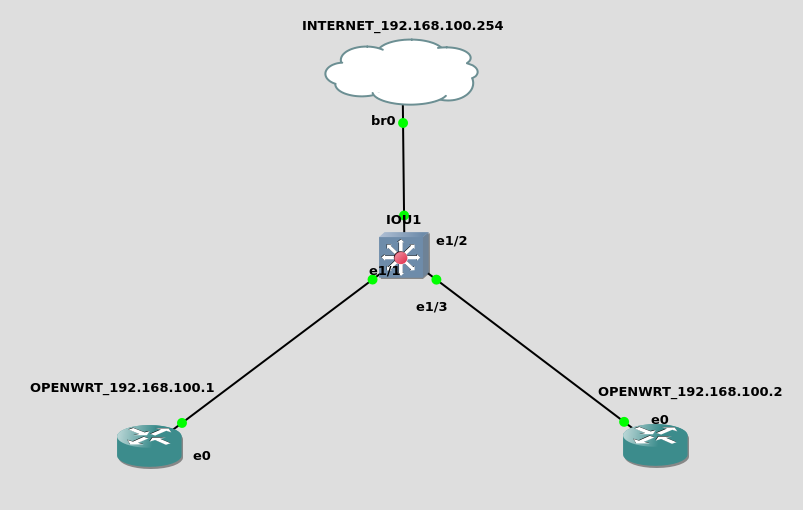
Using the latest openWRT/LEDE image (openwrt-21.02.0-rc3-x86-generic-generic-ext4-combined) for WireGuard on GNS3. By default we must to change Openwrt network IP(192.168.100.1 and 192.168.100.2), GW (192.168.100.254) and add DNS (8.8.8.8):


Also change DNS settings to 8.8.8.8 :


For this using the following network setup:


For WireGuard we must install following packages (the same thing can be done in GUI "System" --> "Software" section).

opkg install luci-proto-wireguard wireguard-tools luci-app-wireguard kmod-wireguard

Initial setup of Wireguard is privarte and publick key generation on both nodes and setup via luci interface

mkdir /VPN
cd /VPN
#Generating public key
wg genkey > pub.key
#Generating private key
wg pubkey < pub.key  > pri.key

After generating private and public keys we must setup WireGuard via luci (WebGUI) inteface by creating new network interface  "Add new Interface..." in Network --> Interface.

The configuration on Node 192.168.100.2

First we must create WireGuard interface, the name of interface is wg0:
After it we setup new interface be defining, "Private Key", which was generated in last step, also good idea to setup Listen Port (exp 51820) and the IP of the Wiregaud interface (10.0.0.2/24) on the node OPENWRT_192.168.100.2, on OPENWRT_192.168.100.1 we will use 10.0.0.1/24

After it we must setup remote node in "Peers" add "Add peer": 

And setting for remote node the following fields:

Description : 192.168.100.2
Public Key: ENleaCdfs   - the file pub.key in other node (OPENWRT_192.168.100.1)
Allowed IPs: 10.0.0.0/24
Endpoint Host: 192.168.100.2
Endpoint Port: 51820
Persistent Keep Alive: 10 - optional settings, this will help work from behind the NAT and also tunnel will be up fro all time.

Also for testing you should put the new Wireguard interface  to lan zone, after create separate security zone


The same configuration must be applied to other node. To activate the change or after modification you need to restart network service in menu "System" --> "Startup".
To check status status of WireGuard from CLI is just ping the remote node to use the wg comand to see the status of tunnel. The bad thing that you will not see any active socket open in netstat -nap command.


The same info can be seen from GUI in "Status" --> "WireGuard" menu section.


If tunnel is down (transfer is none) or the remote node does not respond to ping or  always good to check the wireshark on GNS3 or tcpdump on node also to see in wg if the remote public key matches local peer key. Also to see if the network node you are pinging is in routing table. The bad thing that you will not see any active socket open in netstat -nap command.

VXLAN configuration

To set up the L2 connectivity from one node to other we will use vxlan, it's an encapsulation technique to encapsulate OSI layer 2 Ethernet frames in layer 4 UDP datagrams (RFC4789). 
For it we will need to install following packages:

opkg install vxlan kmod-vxlan luci-proto-vxlan
 
After installing the needed packages we will have to create net network interface "Add new interface..." in "Network" --> "Interfaces". As we are running IPv4 network we use the VXLAN (RFC7348) interface type.


Also for first/testing we setup the VXLAN interface binding on LAN interface, in this case the traffic will not be encrypted, the configuration should be as follows: 


Like in WireGuard configuration VX0 interface should be  added to Firewall-zone: lan, to allow full access for testing.


To test IP connectivity we will create new BRIDGE interface with IP. The new Bridge will connect VX0 interfaces  to LAN intefaces eth1.


In OpenWRT new bvridge interface is create in Network --> Interfaces --> Device  "Add device configuration"


And after it create IP interface in "Interfaces" section and assign IP address on 172.16.0.1 on left node and 172.16.0.2 on right node.

At this point the IP connectivity should be working after restarting network service or after reboot, the issue with vxlan as in WireGuard, the netstat does not show socket usage. So classically only Wireshark or TCP dump can show VXLAN traffic:

The configuration of the VXLAN interface vx0 in OpenWRT:

And ofcource the tcpdumo traffic sniff on vx0 intergface to see if our traffic can pass the new WireGuard and VXLAN tunnels:


In this configuration we can pass traffic from one end to other via L2 link and even have trunk connection between to switcher connected at the end of routers:


To see if traffic pass correctly we should see from sniff made on link on node "Switch1" and OPENWRT_192.168.100.1, we should see VLAN tag and traffic passing from PC1 to PC2.


The main  disadvantage (nasty thing) is that the MTU/frame size must be bellow MTU of the vx0 interface (in our case less then 1370 Bytes), also including the Ethernet and vlan headers. So setting the network we must set the PC1 and PC2 MTU size much smaller, also keeping in mind that we could be using QinQ or other encapsulation methods.

A topic for L2 fragmentation i think:)


Saturday, 27 March 2021

Python Elasticsearch


Basic ElasticSearch connection to from Python and search, the main issue is to convert the retrieved data to your suitable  needs.  For begging limit the data we receive by using size option in (size=10), and limit the retrieving fields, only the needed one ("_source": ["field_x", ..., "field_y"],).
the biggest issue is the the nested dict we receive from  ElasticSearch, to convert to DataFrame we musrt to use the json_normalize.


 1
 2
 3
 4
 5
 6
 7
 8
 9
10
11
12
13
14
15
16
17
18
19
20
21
22
23
24
25
26
27
28
29
30
31
32
33
34
35
36
37
38
39
40
41
42
43
44
45
46
47
48
49
50
51
52
53
54
55
56
57
58
# Elasticsearch stuff to import

import ssl, certifi
from elasticsearch import Elasticsearch
from elasticsearch.connection import create_ssl_context
from elasticsearch import Elasticsearch, RequestsHttpConnection

# Panda stuff to import
from pandas import json_normalize

def main_search1():
    # # no certificate verification
    ssl_context = create_ssl_context()
    ssl_context.check_hostname = False
    ssl_context.verify_mode = ssl.CERT_NONE

    es = Elasticsearch(hosts=[{'host': '127.0.0.1', 'port': 9200}],
                       scheme="https",
                       # to ensure that it does not use the default value `True`
		               connection_class=RequestsHttpConnection,
                       # enable SSL
                       use_ssl=True,
                        verify_certs=False,
                       http_auth=("user", "password"))
    print (es.info())
    # search query on elasticsearch
    result = es.search(
    index="syslog-2021.03.12",
    body={
        # field to retriev from elasticsearch
        "_source": ["cisco", "timestamp"],
        # search query
        "query": {
		"match": {
  			'user.name':'test'
		}
        }
    },
    # number of results to retriev
    size=10)

    # show retriewed result "['hits']['hits']"  show only found data
    print(result['hits']['hits'])

    # print results from Elasticsearch
    all_hits = result['hits']['hits']
    for num, doc in enumerate(all_hits):
        print ("DOC ID:", doc["_id"], "--->", doc, type(doc), "\n")


    #convert to Panda DataFrame with normalize dictiniory --> https://pandas.pydata.org/pandas-docs/stable/reference/api/pandas.json_normalize.html
    res_content_pd = json_normalize(result['hits']['hits'])
    print (res_content_pd)
    return


if __name__ == '__main__':
    main_search1()

Elasticsearch-dsl

The main problem of using Elasticsearch API is the query (body) syntax, it's not human friendly especial for first time or mass usage in code, it's hard to write debug and execute correctly.
The main idea of Elasticsearch-dsl is to simplify the query and filters of API.
 
 1
 2
 3
 4
 5
 6
 7
 8
 9
10
11
12
13
14
15
16
17
18
19
20
21
22
23
24
25
26
27
28
29
30
31
32
33
34
35
36
37
38
39
40
41
42
43
44
45
46
47
48
49
50
51
52
53
54
55
56
57
58
59
60
61
62
63
64
65
66
67
# Elasticsearch stuff to import

import ssl, certifi
from elasticsearch import Elasticsearch
from elasticsearch.connection import create_ssl_context
from elasticsearch import Elasticsearch, RequestsHttpConnection

# Panda stuff to import
from pandas import json_normalize
from elasticsearch_dsl import Search, Q
def main_search2():
    # # no certificate verification
    ssl_context = create_ssl_context()
    ssl_context.check_hostname = False
    ssl_context.verify_mode = ssl.CERT_NONE

    es = Elasticsearch(hosts=[{'host': '127.0.0.1', 'port': 9200}],
                       scheme="https",
                       # to ensure that it does not use the default value `True`
                       connection_class=RequestsHttpConnection,
                       # enable SSL
                       use_ssl=True,
                       verify_certs=False,
                       http_auth=("user", "password"))
    print (es.info())

    # search query on elasticsearch-dsl, more simple way ti make logical queries
    # if searchig for nested data (example user:{name:'test1'} we must use double ** if not nested no ** needed
    query = Q('match', **{'user.name':'test'}) & Q('match', **{'observer.ip':'1.1.1.1'})

    #difine index ant result numbet to retriev with size option
    s = Search(using=es, index='syslog-2021.03.12').query(query).extra(size=4000)

    # define fields to retriev fields(['timestamp', 'cisco'])
    s = s.source(['timestamp', 'cisco'])

    #count the number of resuls
    total = s.count()
    print(total)
    #difine tthe numbet of results to retriev
    s = s[0:10]
    # Execute function search and return an instance of Response wrapping all the data.
    # if retrieving big data set use scan() option which returns a generator that will iterate over all the documents matching the query.
    res_content = s.execute()


    # show retriewed result "['hits']['hits']"  show only found data
    print(res_content['hits']['hits'])

    # print results from Elasticsearch
    all_hits = res_content['hits']['hits']
    for num, doc in enumerate(all_hits):
        print ("DOC ID:", doc["_id"], "--->", doc, type(doc), "\n")

    # convert to Panda DataFrame with normalize dictiniory --> https://pandas.pydata.org/pandas-docs/stable/reference/api/pandas.json_normalize.html
    results= [d.to_dict() for d in res_content]
    res_content_pd1 = json_normalize(results)
    print(res_content_pd1)

    # not os effiecient way of using ['hits']['hits'], not make dataframe (more time is needed )
    res_filtered = [x['_source'].to_dict() for x in res_content['hits']['hits']]
    res_content_pd2 = json_normalize(res_filtered)
    print (res_content_pd2)


if __name__ == '__main__':
    main_search2()


The main difference of the Elasticsearch and Elasticsearch-dsl is the query fields:

query = Q('match', **{'user.name':'test'}) & Q('match', **{'observer.ip':'1.1.1.1'})

We can define the match query and logical values or and, etc..
To match field within another field we must use ** for defining nested dict sub values by dot.
Section "Dotted fields"


Sunday, 29 December 2019

Raspberry PI4 Olimex MOD-LCD3310 Python SPI

How to connect MOD-LCD3310 to Raspberry pi4  via SPI interface

  1. Rasberry pi4 with rasbian -->
  2. One Olimex MOD-LCD3310 LCD -->
  3. Ribbon cables female/female (need 8)
First download and install Python and is modules from github.com https://github.com/Bingzo/replicape/tree/master/libs/spi

#sudo sudo python setup.py build

and install (if you do not wish to use this module you and only build and use it from the build directory with out install)

sudo sudo python setup.py  install

Pinout

The olimex MOD-LCD3310 UEXT pinout is shown bellow. 

Rasberri Pi pinout and it's numbering can be found here https://pinout.xyz/ 
For my setup i used Raspberri Pi4 pins as follows


 -----------------------------------------
| Raspberri PI |              |           |
| Physical pin |  MOD-LCD331  |    Name   |
|--------------|--------------|-----------| 
|      1       |      1       |    3.3V   |
|     19       |      8       |    MOSI   |
|     21       |      7       |    MISO   |
|     23       |      9       |  SCLK/SCK |
|     24       |     10       |  CE0/SSEL |
|     39       |      2       |    GNT    |
|     27       |      6       |  GPIO0/SDA|
|     28       |      5       |  GPIO1/SCL|
 -----------------------------------------
Something like this :)


Download the 3310.py code from github https://github.com/OLIMEX/raspberrypi/tree/master/MOD-LCD-3310

Install missing python modules to Raspberri and enable spi via raspi-config --> Interfacing Options --> SPI

pip install termcolor RPi.GPIO

Execute code using old spi module


import RPi.GPIO as GPIO
import time
GPIO.setmode(GPIO.BCM)
GPIO.setwarnings(False)
GPIO.setup(0, GPIO.OUT)     #SDA -> LCD_C/#D
GPIO.setup(1, GPIO.OUT)     #SCL -> #LCD_RESET
GPIO.output(0, True)
GPIO.output(1, True)
from spi import SPI
lcd = SPI(0, 0)
lcd.msh = 1000000

#define some variables
SEND_CMD = 0
SEND_CHR = 1

LCD_X_RES = 84
LCD_Y_RES = 48

PIXEL_OFF = 0
PIXEL_ON = 1
PIXEL_XOR = 2

FONT_1X = 1
FONT_2X = 2

LCD_CACHE_SIZE = ((LCD_X_RES * LCD_Y_RES) / 8)


LcdMemIdx = 0
LcdMemory = [0x00] * LCD_CACHE_SIZE
LCD_START_LINE_ADDR = 64

SEND_CMD = 0
SEND_CHR = 1

def LCD_DC_HIGH():
    GPIO.output(0, True)
    return

def LCD_DC_LOW():
    GPIO.output(0, False)
    return

def LCDClear():
    #"Clear LCD"
    for i in range(LCD_CACHE_SIZE):
        LcdMemory[i] = 0x00
    return

def LCDReset():
    GPIO.output(1, False)
    time.sleep(0.05)
    GPIO.output(1, True)

def LCDUpdate():
    #"Update LCD memory"
    
    for y in range(6):
        LCDSend(0x80, SEND_CMD)
        LCDSend(0x40 | y, SEND_CMD)
        for x in range(84):
            LCDSend(LcdMemory[(y * 84) +x], SEND_CHR)
    return

def LCDSend(data, cd):
    #print
    if cd == SEND_CHR:
        LCD_DC_HIGH()
    else:
        LCD_DC_LOW()
        
    lcd.writebytes([data])    
    return
    
    
def LCDInit():
    #"Init LCD Controller"
    LCDReset()
    
    LCDSend(0x03, SEND_CMD)
    time.sleep(1)
    LCDSend( 0x21, SEND_CMD)                                        #LCD Extended Commands
    LCDSend( 0xC8, SEND_CMD)                                        #Set KCD Vop (contrast)
    LCDSend( 0x04 | int(not(not(LCD_START_LINE_ADDR & (1 << 6)))), SEND_CMD)   #Set Temp S6 for start line
    LCDSend( 0x40 | (LCD_START_LINE_ADDR & ((1<<6 0x08="" 0x0c="" 0x12="" 0x20="" 1:68="" addressing="" bias="" blank="" commands="" contrast="" def="" et="" extended="" for="" horizontal="" in="" lcd="" lcdclear="" lcdcontrast="" lcdsend="" lcdupdate="" line="" mode="" normal="" ontrast="" pre="" s="" send_cmd="" standard="" start="" temp="" vop="" x20="" x21="" x80="" xff="">


Code with SPIDEV:


import RPi.GPIO as GPIO
import time
import spidev
GPIO.setmode(GPIO.BCM)
GPIO.setwarnings(False)
GPIO.setup(0, GPIO.OUT)     #SDA -> LCD_C/#D
GPIO.setup(1, GPIO.OUT)     #SCL -> #LCD_RESET
GPIO.output(0, True)
GPIO.output(1, True)

lcd = spidev.SpiDev()

lcd.open(0,0)
lcd.max_speed_hz = 1000000


#define some variables
SEND_CMD = 0
SEND_CHR = 1

LCD_X_RES = 84
LCD_Y_RES = 48

PIXEL_OFF = 0
PIXEL_ON = 1
PIXEL_XOR = 2

FONT_1X = 1
FONT_2X = 2

LCD_CACHE_SIZE = ((LCD_X_RES * LCD_Y_RES) / 8)


LcdMemIdx = 0
LcdMemory = [0x00] * LCD_CACHE_SIZE
LCD_START_LINE_ADDR = 64

SEND_CMD = 0
SEND_CHR = 1

def LCD_DC_HIGH():
    GPIO.output(0, True)
    return

def LCD_DC_LOW():
    GPIO.output(0, False)
    return

def LCDClear():
    #"Clear LCD"
    for i in range(LCD_CACHE_SIZE):
        LcdMemory[i] = 0x00
    return

def LCDReset():
    GPIO.output(1, False)
    time.sleep(0.05)
    GPIO.output(1, True)

def LCDUpdate():
    #"Update LCD memory"
    
    for y in range(6):
        LCDSend(0x80, SEND_CMD)
        LCDSend(0x40 | y, SEND_CMD)
        for x in range(84):
            LCDSend(LcdMemory[(y * 84) +x], SEND_CHR)
    return

def LCDSend(data, cd):
    #print
    if cd == SEND_CHR:
        LCD_DC_HIGH()
    else:
        LCD_DC_LOW()
        
    lcd.writebytes([data])    
    return
    
    
def LCDInit():
    #"Init LCD Controller"
    LCDReset()
    
    LCDSend(0x03, SEND_CMD)
    time.sleep(1)
    LCDSend( 0x21, SEND_CMD)                                        #LCD Extended Commands
    LCDSend( 0xC8, SEND_CMD)                                        #Set KCD Vop (contrast)
    LCDSend( 0x04 | int(not(not(LCD_START_LINE_ADDR & (1 << 6)))), SEND_CMD)   #Set Temp S6 for start line
    LCDSend( 0x40 | (LCD_START_LINE_ADDR & ((1<<6 0x08="" 0x0c="" 0x12="" 0x20="" 1:68="" __name__="=" addressing="" bias="" blank="" commands="" contrast="" def="" et="" extended="" for="" horizontal="" if="" in="" lcd="" lcdclear="" lcdcontrast="" lcdsend="" lcdupdate="" line="" main__="" mode="" normal="" ontrast="" pre="" s="" send_cmd="" standard="" start="" temp="" vop="" x20="" x21="" x80="" xff="">


Wednesday, 11 May 2016

FortiGate CLI HACKING


It's a short information on FortiGate CLI and get to linux shell (sort of that).

Basicly as we know most of networking vendors use Linux OS as main OS for there network devices,but for security reasons (they don't like to support old stuff) they hide the iner Linux shell from normal users (i don't like it:). In some device it is done good and nice and in some no so nice, some leave it only for debuging purpuse (Like in Forti). In this class we have old good Fortigare device, telling the truth i like this devices looking from the price point.

Ok back to main toppic, how to get to Linux from Fotigate CLI. We have two possible solliutions:

1. The first and more easy solliution is to use magic command fnsysctl + <linux CMD>

Forti # fnsysctl ls
bin               data              data2             dev              
etc               fortidev-x86_64   fortidev4-x86_64  ipc_quar         
ipc_quar_backup   lib               lib64             migadmin         
proc              sbin              smo               tmp              
usr               var      


It's easy, the most intersting thing is that we can get to higher privilgate level with this commad. For example if I am an read only user <test> dedicated for one vdom ( a virtual system, some kind of if)  and with only read privilage :

# the profile for test - Read Only
config system accprofile
    edit "test"
        set admingrp read
        set authgrp read
        set comments "read"
        set endpoint-control-grp read
        set fwgrp read
        set loggrp read
        set mntgrp read
        set netgrp read
        set routegrp read
        set sysgrp read
        set updategrp read
        set utmgrp read
        set vpngrp read
        set wanoptgrp read
        set wifi read
    next
end


# the user dedicated to only test vdom
config system admin
    edit "test"
        set accprofile "test"
        set vdom "test"
        set password ENC ***********

    next
end


So we can login in with our test user and see what can we do:

Forti login: test
Password: ****
Welcome !

Forti $ fnsysctl ls
bin               data              data2             dev              
etc               fortidev-x86_64   fortidev4-x86_64  ipc_quar         
ipc_quar_backup   lib               lib64             migadmin         
proc              sbin              smo               tmp              
usr               var        

Not so speacial, but we also can list and read full config of FortiGate and see outher VDOM settings :

# the location of configs in Fortigate Flash:
Forti $ fnsysctl ls  /data2/config
cfg0000000036  cfg0000000037  cfg0000000038  cfg0000000039  cfg0000000040 
cfg0000000041  cfg0000000042  cfg0000000043  cfg0000000044  cfg0000000045 
cfg0000000046  cfg0000000047  cfg0000000048  cfg0000000049  cfg0000000050


And afcouse we can read the woth cat:

Forti $ fnsysctl cat  /data2/config/cfg0000000075                                                                                                           
#config-version=FG100D-5.00-FW-build271-140409:opmode=0:vdom=1:user=admin
#conf_file_ver=23568740905703635265
#buildno=4429
#global_vdom=1

config vdom
edit root
next
edit ZONE1
next
edit test
next
edit opaopa
next
edit ZONE2
next
edit BRIDGE2

.....


With out the basic commands we have also ping,cat, kill,killall,ifconfig, etc, not all commands work but it's enouth for basic debuging.

The interesting thing is that the WEB GUI interface is running on django framework (python based):


fnsysctl ls /usr/lib/proj/                                                                                                                          
__init__.py   __init__.pyc  config.py     config.pyc    firewall     
fortiswitch   ftnt          logs          manage.py     pubredir     
registration  reports       router        settings.py   settings.pyc 
sprite        system        urls.py       user          utils        
utm           vpn           wanopt        wifi